Songs4Christ docs
Listening
What someone sees and can do on the site. Everything is free and works without an account.
Finding an album
The site opens on the Isaiah album. The Albums menu at the top lists every album, and All Albums opens the full grid.
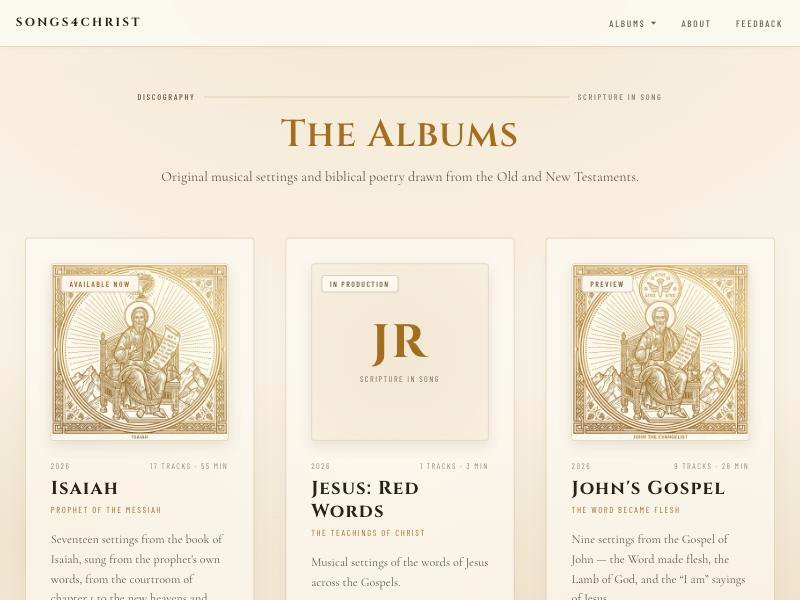
Each card shows the cover, year, track count, length, a short description and a badge:
| Badge | What it means | Button |
|---|---|---|
| Available Now | Finished and ready to play | Listen Album → |
| Preview | Part of the album is ready to play | Preview Album → |
| In Production / Coming Soon | Announced, but not open yet | None: the card shows its status instead |
The album page
An album page has three areas, plus the player bar along the bottom.
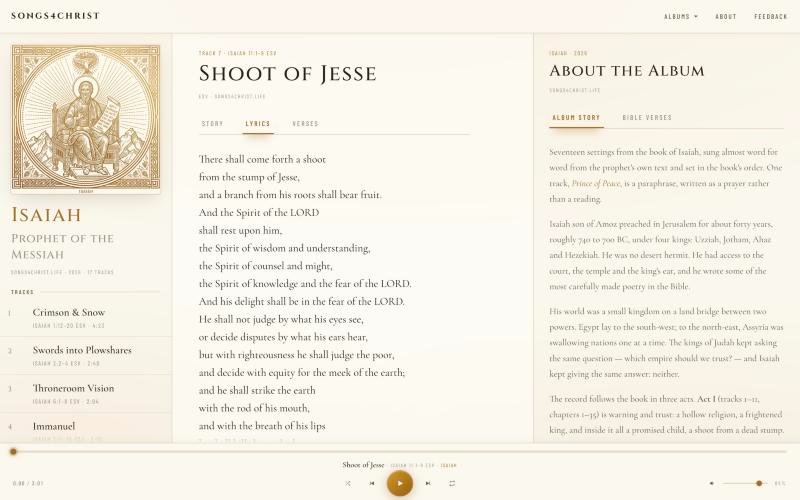
| Area | What's there |
|---|---|
| Left | The cover, the album title and the tracklist. Click a track to play it. |
| Middle | The selected song, with its passage, translation and three tabs. |
| Right | Two tabs about the whole album: Album Story and Bible Verses. |
Opening an album selects its first track but doesn't start playing. Playback starts when the listener presses play or clicks a track.
Reading along
| Tab | What it shows |
|---|---|
| Story | Commentary on the song: its setting, what to notice, and links to other passages. |
| Lyrics | The song's words, with section labels such as Verse and Chorus where the song has them. |
| Verses | The Bible passage with verse numbers and the translation notice. This tab only appears when the song has verses. |
| Album Story | The album's liner notes. |
| Bible Verses | Every song's verses in album order, then any extra passages chosen for the album. |
Lyrics don't scroll with the music. They're a page to read, not synced karaoke text.
The player bar
The bar stays at the bottom of the screen. It shows on every album page, and on other pages once something has played.
| Control | What it does |
|---|---|
| Progress line | Click or drag to jump anywhere in the song. |
| Play / pause | The large round button in the middle. |
| Previous | Goes back a track. If the song is more than 3 seconds in, it restarts the song instead. |
| Next | Goes to the next track. From the last track it goes back to the first. |
| Shuffle | Plays a random different track each time, and keeps going until stopped. |
| Repeat | Repeats the whole album. It doesn't repeat a single song. |
| Volume | A mute button and slider, on wider screens only. Phones use their own volume buttons. |
Without repeat or shuffle, the album stops after the last song and returns to track 1.
Keyboard shortcuts
These work anywhere on the site except while typing in a form.
| Key | Action |
|---|---|
| Space | Play or pause |
| ← → | Back or forward 15 seconds |
| ↑ | Previous track |
| ↓ | Next track |
Browsing while the music plays
Moving between pages doesn't interrupt the music, because links inside the site swap the page content without reloading the page.
- Open another album: the current song keeps playing, and the player bar keeps showing it.
- Click a track in that album: that album takes over, and next and previous now move through it.
- Refresh or close the page: playback stops. The site doesn't remember the song or position.
On a phone
The three areas stack into one scrolling page: album and tracks first, then the song, then the album notes. The player bar stays pinned to the bottom.
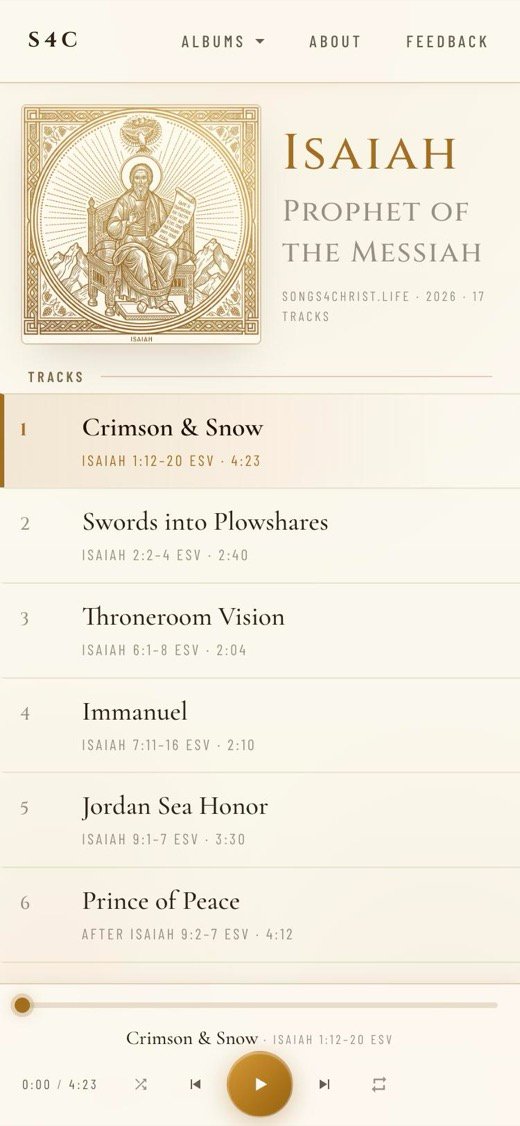
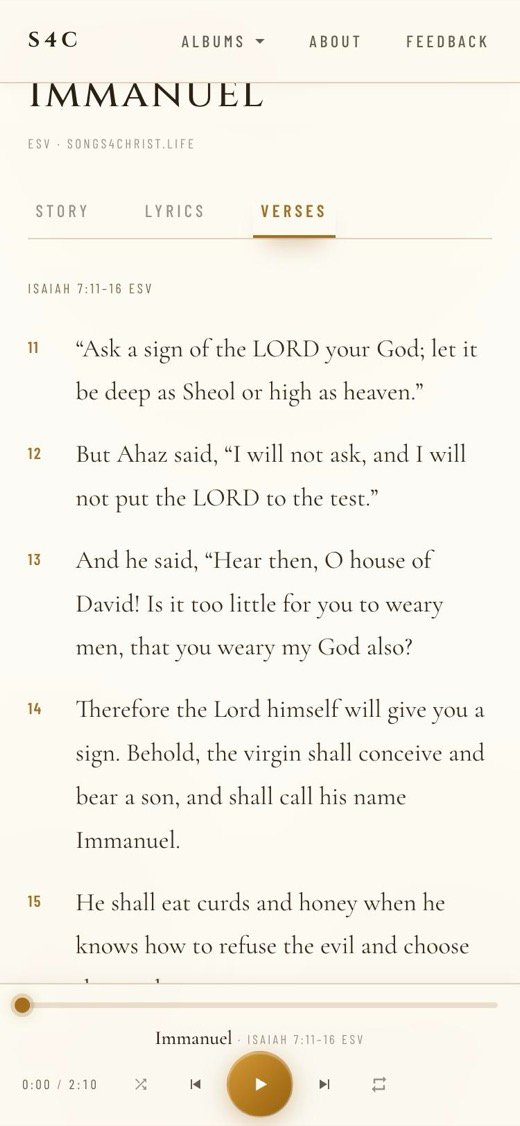
The site also passes the song title, album and cover to the device. Where a phone, car or pair of headphones supports it, that means lock-screen artwork and working play, pause, next and previous buttons.
What the site remembers
Only the volume level and mute setting, stored in the listener's own browser. There's no account, and playback history isn't kept.
Sending feedback
The Feedback page has one required field, the message. Name and email are optional, and email is only needed if the sender wants a reply. The topic list covers general feedback, each album and Scripture suggestions.
Not available yet
- Downloading songs or listening offline
- Links to one specific song
- Searching, or browsing songs by Bible book